Connect with Cursor
The supported path. Install, click one link, and you are prompting against your own data.
Finish Connect to your box first. Cursor uses the SSH key and config you set up there. Without it, the connect link opens Cursor and then stalls.
Step 1: Install Cursor
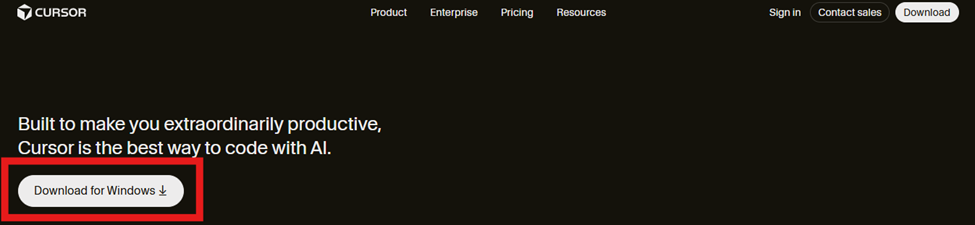
- Open a browser on the computer you will build from and go to cursor.com.
- Click the download button for your operating system.
- Run the installer, then open Cursor.
- Sign in or create a free account when prompted. The free tier is enough to connect and build, because the AI that writes your dashboards runs through Rapid.Coder on the box.
Step 2: Open your box
Fill in your box address and this page builds the one-click link that opens Cursor directly into your workspace. Nothing you type here leaves your browser.
Clicking Open in Cursor launches the app and connects it to your box over SSH using the key you sent us. The first time, your operating system asks permission to open Cursor. Allow it.
If you would rather not use the link
Cursor connects manually in four keystrokes:
- Press Ctrl + Shift + P (Cmd + Shift + P on a Mac) to open the command palette.
- Type Remote-SSH: Connect to Host and press Enter.
- Pick
rapidboxfrom the list. It appears because of the config file you saved earlier. - In the new window, choose Open Folder and select
/opt/stacks/<your-client-code>-app.
Step 3: Confirm you are on the box
This check takes two seconds and saves confusion later. Look at the lower-left corner of the Cursor window. When you are connected remotely, it shows the remote name rather than staying blank.
If that corner is empty, you are editing files on your laptop. Prompts still run, and they have no access to your data. Reconnect using the link above before you build anything.
Step 4: Your first prompt
Open the chat panel with Ctrl + L (Cmd + L on a Mac). Start by asking what is connected rather than asking for a dashboard. The answer tells you what vocabulary to use for everything after.
Before we build anything, give me an inventory of what this box can already see.

List every connected data source. For each one, tell me:
- the system it comes from and how it connects (API, CSV, or SQL)
- how fresh the data is and how often it refreshes
- the main tables or entities available, in plain business language
- the date range actually present

Then suggest the five dashboards you would build first for a CEO, given
what is here. Keep it to one paragraph each and no code yet.
Read the answer carefully. It is the map for everything else, and it usually surfaces one thing worth fixing before you build: a source that refreshes less often than you assumed, or a date field that means "created" where you expected "closed."
Four sources are connected:
Five dashboards I would build first, given what is here…
Now build something. Head to the prompt library or paste this one:
Build me a dashboard that answers: how did the business perform last month
compared to the same month last year?

Use the sources you just inventoried. Include revenue, gross margin, and
the three largest expense categories. Put the headline numbers across the
top with the change versus last year beside each one, and a twelve-month
trend below.

Assume the reader is the CEO and has ninety seconds. Show me the result,
then tell me which definitions you had to guess at so I can correct them.
Working day to day
| To do this | Do that |
|---|---|
| Open the chat panel | Ctrl/Cmd + L |
| Start a fresh conversation | Click the + in the chat panel. Do this whenever you switch topics, so old context stops influencing new answers. |
| Point at a specific file | Type @ in the chat and pick the file. Useful for "change this dashboard" rather than "build a new one." |
| Reconnect after closing Cursor | Reuse the link from Step 2, or open Cursor and pick the box from File → Open Recent. |
| Change which AI model writes your code | See Using Rapid.Coder. |
Your work lives on the box, not in Cursor. Close the laptop, reconnect tomorrow from a different machine, and everything is where you left it. That also means a colleague connecting to the same box sees the same dashboards.
Troubleshooting
| Symptom | Likely cause | Fix |
|---|---|---|
| The link does nothing | Cursor is not installed, or the browser blocked the app handoff. | Confirm Cursor opens on its own first, then click the link again and allow the prompt. Otherwise use the manual command palette route above. |
| Cursor opens, then shows a connection error | Your key is not on the box yet, or your SSH config has a typo. | Run ssh rapidbox in a terminal. If that fails too, the problem is the connection, not Cursor. See SSH troubleshooting. |
| Connected, but the folder is empty | Cursor opened the box without opening your workspace folder. | File → Open Folder, then /opt/stacks/<your-client-code>-app. |
| Chat answers, but knows nothing about your data | You are connected to your laptop rather than the box. | Check the lower-left corner as described in Step 3. |
Talk to a human instead.
Every RapidDashboard client gets direct access to the team that built the box. Most questions take under ten minutes on a call.